
How We Secured a WordPress Website After Repeated Malware Attacks
See how a WordPress website affected by repeated malware attacks was cleaned, hardened, and protected with security monitoring, access controls, and ongoing maintenance.
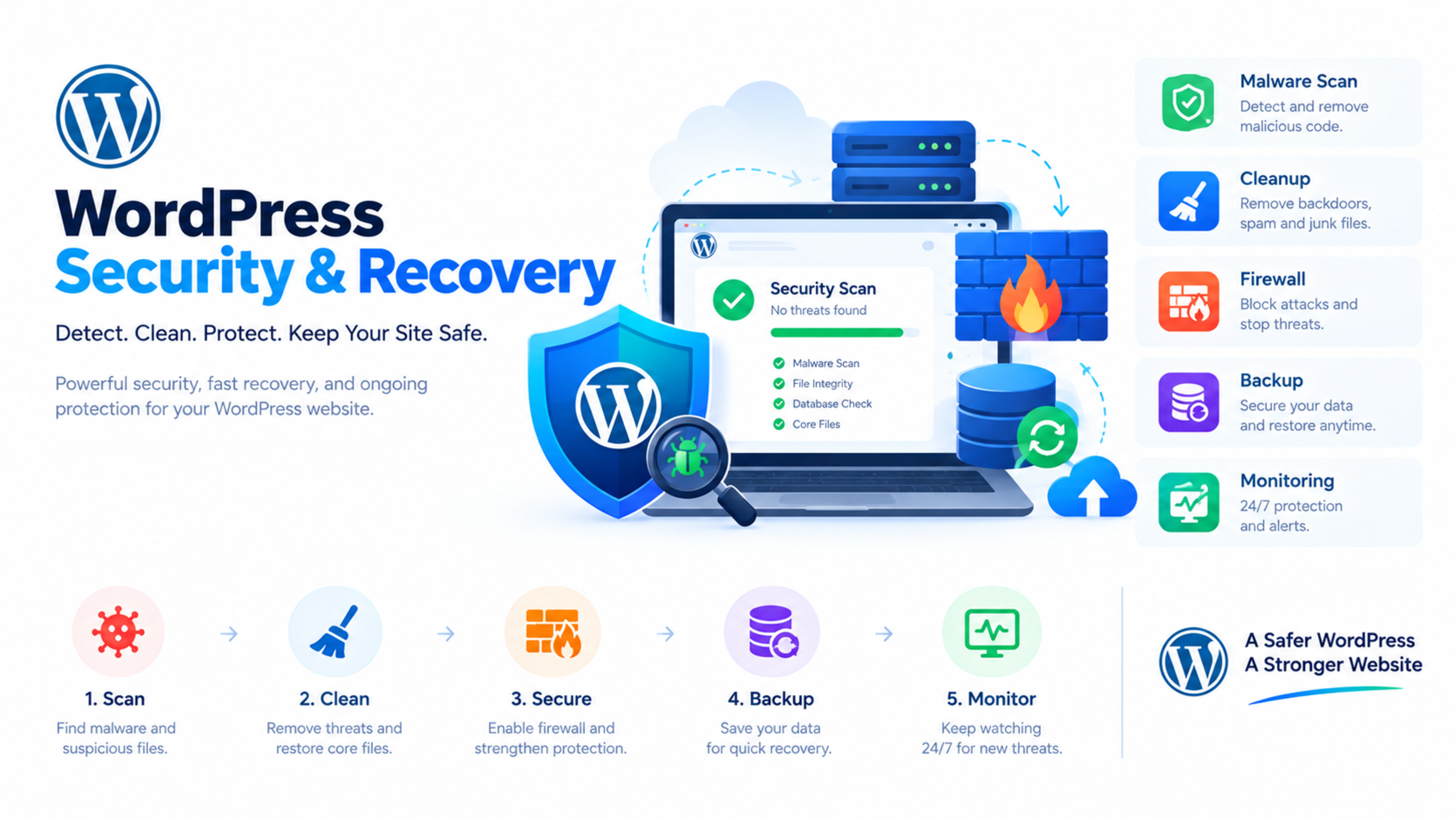
How We Secured a WordPress Website After Repeated Malware Attacks
A business contacted us after its WordPress website was repeatedly infected with malware. The site would appear normal one week, then start redirecting visitors, showing suspicious pop-ups, or sending spam emails the next.
The business had already changed its WordPress password and reinstalled the theme. But the malware kept returning. The problem was not one infected file—it was a combination of outdated software, weak access controls, vulnerable plugins, poor file permissions, and no reliable monitoring process.
This case study explains how we cleaned the website, identified the likely entry points, hardened the environment, and put a maintenance process in place to reduce the chance of reinfection.
The client
The client was a service-based business using WordPress to generate enquiries through its website. The website included a contact form, blog, service pages, and several third-party plugins.
The team noticed unusual behaviour: visitors were sometimes redirected to unknown websites, Google Search Console showed security warnings, and the hosting provider reported suspicious outbound email activity.
The challenge
When we began the security review, the website showed several signs of compromise:
Unknown admin users had been created.
Core WordPress files had been modified.
Suspicious PHP files were present in the uploads folder.
The site was injecting spam links into pages.
Some visitors were being redirected to malicious websites.
Outdated plugins remained active.
The website had no reliable backup and restore process.
File and folder permissions were too permissive.
The hosting environment had no clear malware monitoring.
The biggest challenge was that the malware had returned repeatedly. Simply deleting visible infected files would not solve the problem if the attacker still had a backdoor.
Our security recovery process
We followed a structured process: contain the issue, identify the infection, clean the environment, restore a clean version where needed, harden the website, and monitor for repeat attacks.
1. Took a full backup first
Before making changes, we took a complete backup of the website files, database, and server configuration.
This was important for two reasons:
It preserved evidence for investigation.
It allowed us to restore a known state if something went wrong during cleanup.
2. Isolated the infected website
We recommended temporarily restricting public access to the website while cleanup was in progress. This reduced the risk of visitors being exposed to malicious redirects or spam content.
For business websites, even a short maintenance period is better than allowing a compromised site to remain publicly accessible.
3. Reviewed WordPress users and access
We reviewed all administrator accounts and removed unknown users. We also reset passwords for legitimate administrators and enabled two-factor authentication.
We checked for:
Unknown admin accounts
Suspicious editor or author accounts
Old staff accounts that were no longer needed
Weak or reused passwords
Accounts with unnecessary permissions
4. Scanned files and database
We scanned the WordPress core files, themes, plugins, uploads folder, and database for suspicious code.
Common signs included:
Base64-encoded code
Unexpected
eval()functionsUnknown PHP files in upload folders
Spam links in posts, pages, and widgets
Malicious JavaScript in theme files
Unknown database admin users
Suspicious scheduled tasks
Modified core WordPress files
5. Replaced WordPress core files
Instead of trying to repair every modified core file, we replaced the WordPress core with a clean version from the official WordPress repository.
This removed hidden modifications that may not have been visible through a basic malware scan.
6. Removed unused plugins and themes
We reviewed all installed plugins and themes. Unused plugins and themes were removed completely rather than simply deactivated.
Outdated and abandoned plugins can become security risks because they may no longer receive security patches.
7. Updated remaining software
We updated:
WordPress core
Active theme
Active plugins
PHP version
Server packages
SSL configuration
Database credentials where required
We also tested the website after each major update to ensure functionality remained stable.
8. Cleaned the database
We reviewed the database for suspicious admin users, spam content, malicious links, and unexpected scheduled actions.
We also changed database credentials and updated the WordPress configuration file securely.
9. Fixed file permissions
We reviewed file and folder permissions across the website.
As a general rule:
Files should not be writable by everyone.
Sensitive configuration files should have strict permissions.
Upload folders should not execute PHP files.
Administrative areas should have additional protection where possible.
10. Installed security monitoring
We added security monitoring to detect suspicious file changes, failed login attempts, malware signatures, and unexpected admin activity.
Monitoring is important because security is not a one-time task. A website can become vulnerable again if plugins, themes, passwords, or server configurations are neglected.
Security hardening steps
After cleaning the website, we applied several hardening measures.
Updated PHP
We updated the website to a supported PHP version. This reduced exposure to known PHP-level vulnerabilities and improved compatibility with current WordPress versions.
Following the recent critical PHP vulnerabilities, keeping the PHP runtime updated has become even more important.enisa.europa+1
Enabled HTTPS
We ensured the entire website loaded through HTTPS and fixed mixed-content warnings. HTTPS protects data transmitted between visitors and the website.
Restricted login access
We reduced the risk of brute-force attacks by:
Limiting login attempts
Enabling two-factor authentication
Removing unused accounts
Using strong, unique passwords
Monitoring failed login attempts
Added a web application firewall
A web application firewall helps filter malicious traffic before it reaches the website. It can block common attack patterns, suspicious bots, and known malicious requests.
Set up automatic backups
We configured regular backups of both files and database. Backups were stored separately from the live server to reduce the risk of losing them during an attack.
We also tested the restore process. A backup is only useful if it can actually be restored.
Improved update management
We created a maintenance routine for:
WordPress core updates
Plugin updates
Theme updates
PHP updates
Security scans
Backup verification
Uptime monitoring
Malware scanning
The results
After cleanup and hardening, the website stopped showing the malware symptoms that had repeated previously.
Key outcomes included:
Malicious redirects were removed.
Spam injections were cleaned.
Unknown admin users were removed.
Core files were restored to a clean state.
Vulnerable plugins were removed or updated.
Login security was strengthened.
Backups and monitoring were put in place.
The website became more stable and secure.
The most important result was confidence: the business could update content and run marketing campaigns without worrying that the website would be compromised again.
Lessons learned
A hacked website is rarely hacked through only one weakness. In many cases, attackers exploit a chain of small issues:
An outdated plugin
A weak password
A missed update
A vulnerable PHP version
Poor file permissions
No monitoring
No tested backup process
Removing malware is only part of the solution. Long-term protection requires a repeatable security process.
Common ways WordPress websites get hacked
WordPress websites are commonly compromised through:
Outdated plugins
Vulnerable themes
Weak admin passwords
Reused passwords
Outdated PHP versions
Nulled or pirated plugins
Poor file permissions
Insecure hosting environments
Lack of two-factor authentication
No malware monitoring
No tested backups
Using nulled plugins or themes is especially risky because they may contain hidden malware or backdoors.
WordPress security checklist
Use this checklist to reduce the risk of future attacks:
Keep WordPress core updated.
Update plugins and themes regularly.
Remove unused plugins and themes.
Use strong, unique passwords.
Enable two-factor authentication.
Limit the number of admin users.
Use HTTPS across the website.
Keep PHP updated.
Use a firewall.
Scan for malware regularly.
Monitor file changes.
Take automatic backups.
Store backups off-server.
Test backup restoration.
Review user accounts monthly.
Avoid nulled plugins and themes.
Restrict file permissions.
Monitor uptime and error logs.
When to restore from backup
Restore from a clean backup if:
The malware cannot be fully identified.
Core files are heavily modified.
Multiple backdoors are found.
The database is compromised.
The website continues to reinfect after cleanup.
Customer data may have been exposed.
Before restoring, patch the server, update PHP, remove vulnerable software, and change all credentials. Otherwise, the restored website may become infected again.
How Global IT Services can help
Global IT Services provides WordPress malware removal, security audits, website hardening, backup and recovery support, PHP updates, and ongoing maintenance for businesses that need reliable websites.
If your WordPress website has been hacked, is showing suspicious redirects, or keeps getting reinfected, a full security cleanup and hardening review is the safest starting point.
Frequently Asked Questions
How do I know if my WordPress website is hacked?
Common signs include unexpected redirects, spam links, unknown admin users, suspicious pop-ups, new files in the uploads folder, Google security warnings, sudden traffic drops, and unusual outbound emails.
Can I remove WordPress malware myself?
You can remove simple infections if you have technical experience, but malware often hides in databases, core files, plugins, and scheduled tasks. For a business website, a professional cleanup and security audit is safer.
Why does malware keep coming back after removal?
Malware often returns because a backdoor remains on the server. This can be an unknown admin account, infected plugin, modified core file, malicious cron job, or vulnerable PHP environment.
Does updating WordPress remove malware?
No. Updating WordPress is important, but it does not automatically remove malware. You need to scan files and the database, remove backdoors, replace compromised core files, and harden the environment.
Should I restore my website from a backup?
Restore from a backup if the infection is severe or cannot be fully identified. Make sure the server and PHP environment are patched first, and scan the backup before restoring it.
How can I prevent WordPress malware attacks?
Keep WordPress, plugins, themes, and PHP updated. Use strong passwords, two-factor authentication, limited admin access, a firewall, malware scanning, file-change monitoring, and tested backups.
Feedback & Discussion
Have questions or insights? Share your thoughts below.