
Building AI Agents for WhatsApp Sales Automation
Learn building AI agents for WhatsApp sales automation using n8n. A simple, visual guide from setup to deployment, without complex coding requirements.
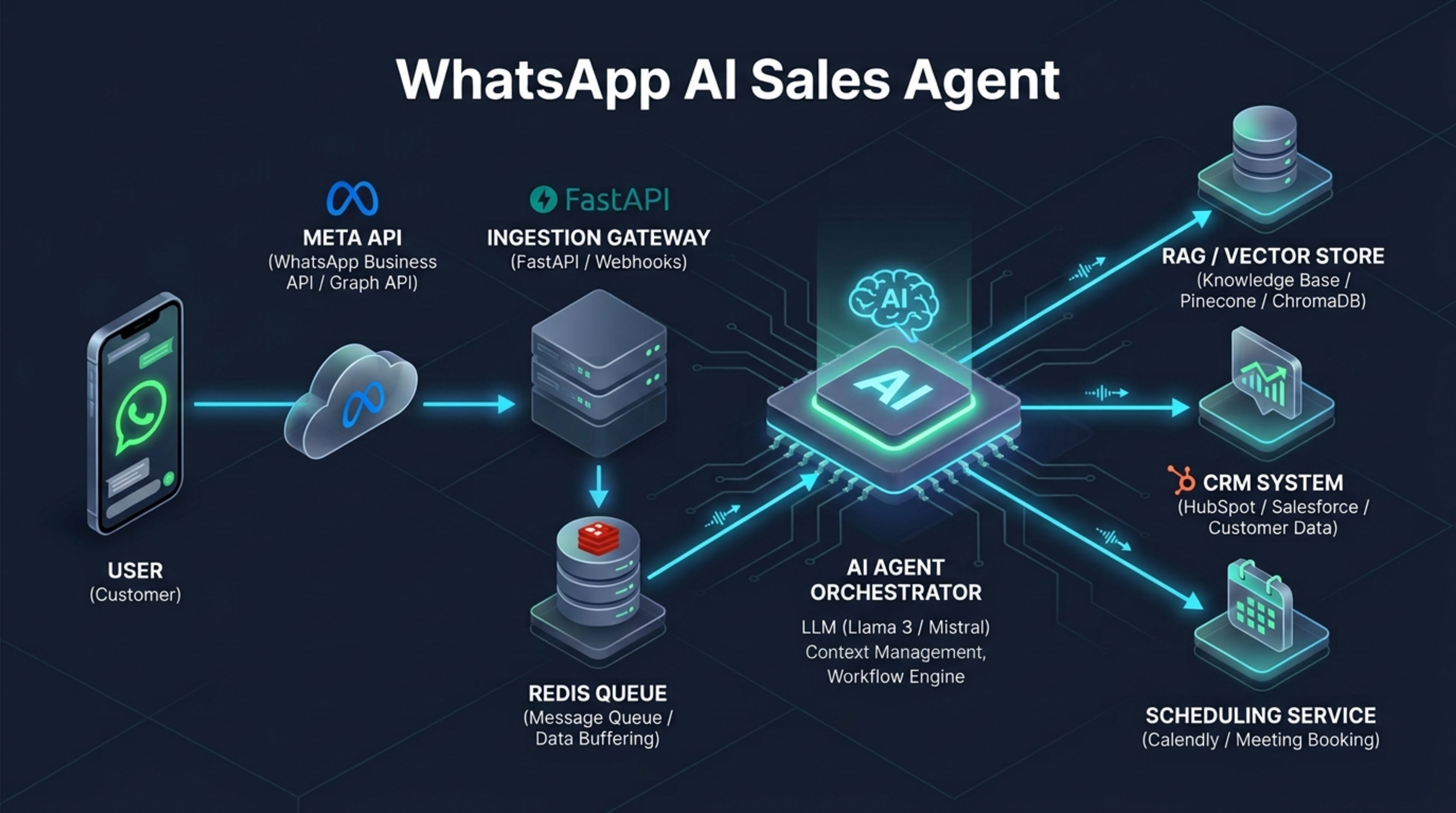
The Ultimate Guide to Building AI Agents for WhatsApp Sales Automation (Using n8n)
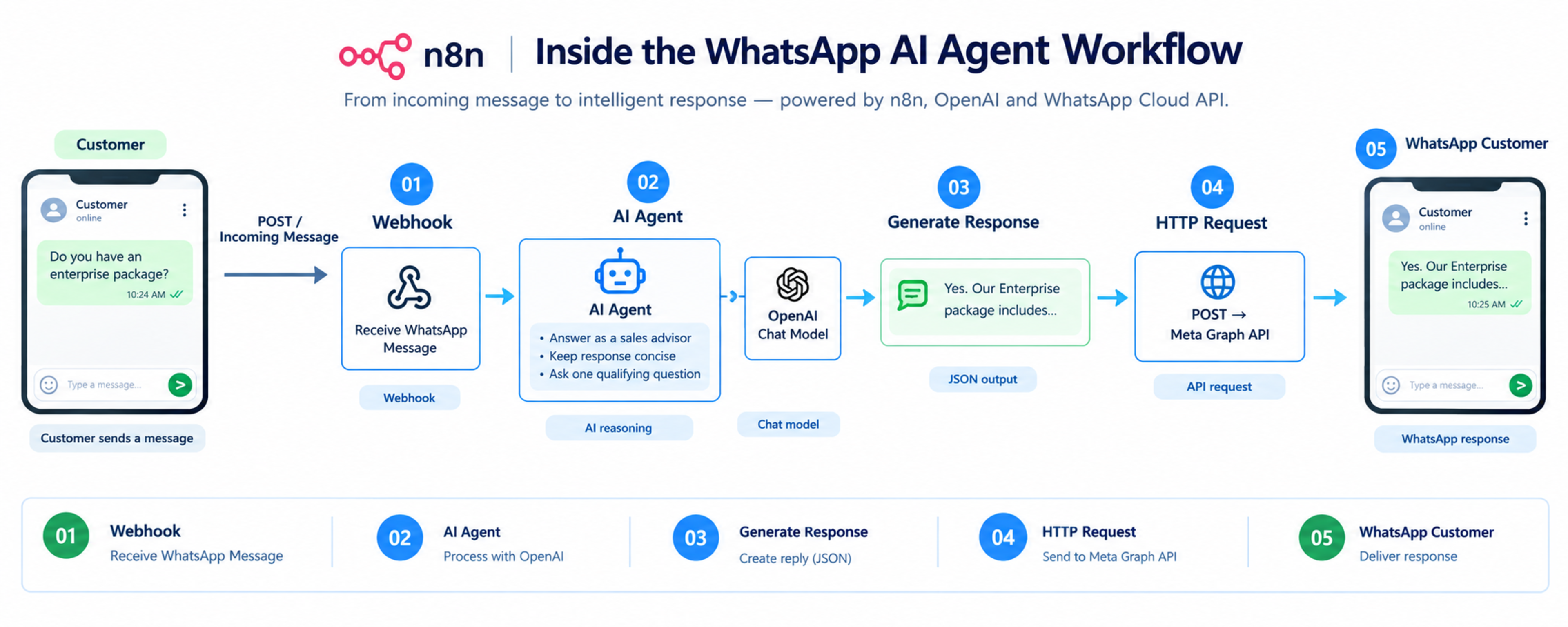
If you have ever interacted with a business on WhatsApp and been forced to reply with "Type 1 for Sales, Type 2 for Support," you know how frustrating traditional chatbots are. The moment you ask a real question, they break.
Today, modern businesses are replacing these outdated bots with smart, autonomous AI. Building AI agents for WhatsApp sales automation is no longer just for hardcore software engineers. Thanks to visual automation tools like n8n, you can now build a WhatsApp agent that talks naturally, answers product questions by reading your PDFs, and automatically saves leads into your CRM—all with minimal coding.
This guide will walk you through the entire process, from creating your first Meta app to deploying your automation live.
Table of Contents
The Technology Stack: What You Will Need
Step 1: Setting up the Meta WhatsApp Cloud API
Step 2: Getting Started with n8n (The Automation Engine)
Step 3: Building the WhatsApp AI Workflow (Node by Node)
Step 4: Adding "Memory" and Product Knowledge (RAG)
Step 5: Connecting Your CRM (HubSpot)
Step 6: Testing, Deploying, and Going Live
Resources, GitHub Links, and Video Tutorials
1. The Technology Stack: What You Will Need
To keep things simple and visual, we are using tools that connect together like digital Lego blocks.
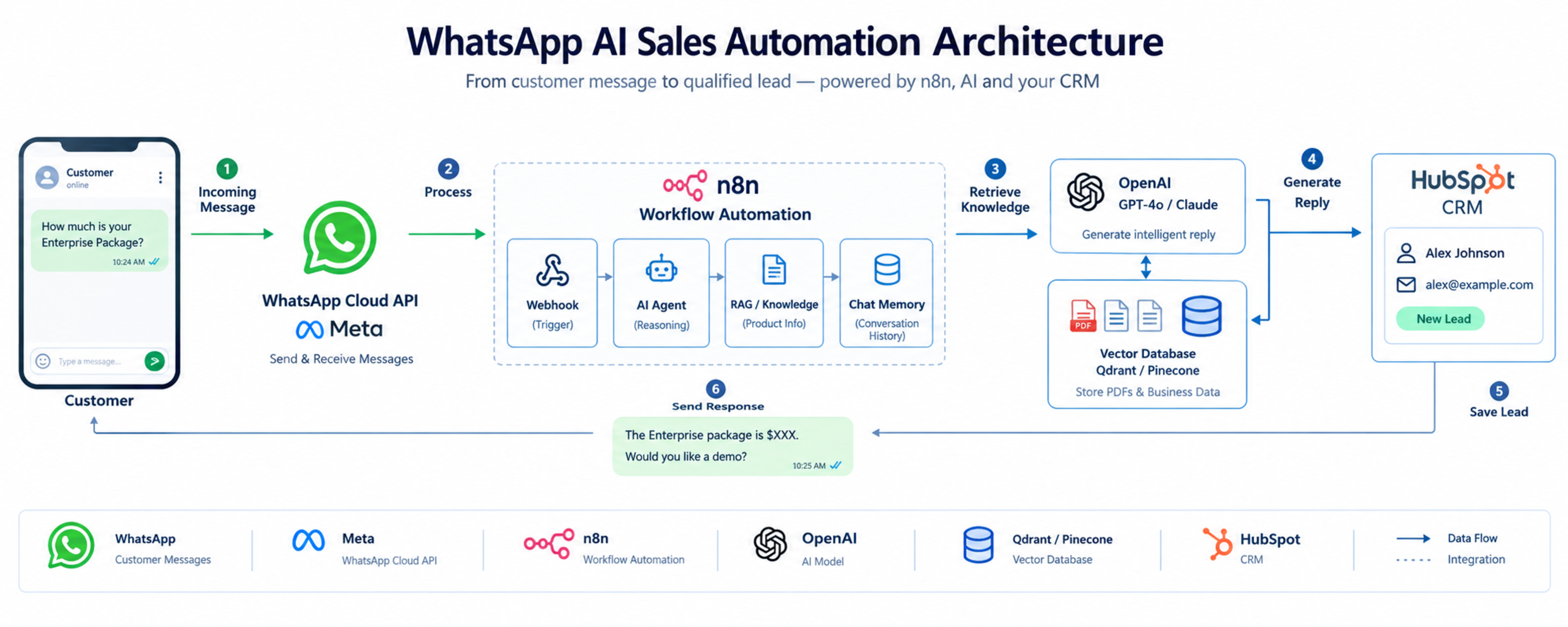
The Face (WhatsApp Cloud API): This is Meta's official API that allows your automation to send and receive messages on WhatsApp.
The Nervous System (n8n): A visual workflow automation tool. Instead of writing thousands of lines of code, you just drag and drop "nodes" on a canvas to connect your apps.
The Brain (OpenAI GPT-4o / Claude 3.5): The AI model that understands customer intent and writes human-like replies.
The Memory (Vector Database): A tool like Qdrant or Pinecone. This is where you upload your business PDFs, pricing, and FAQs so the AI knows your business rules.
The CRM (HubSpot): Where your AI agent will save customer details and sales leads.
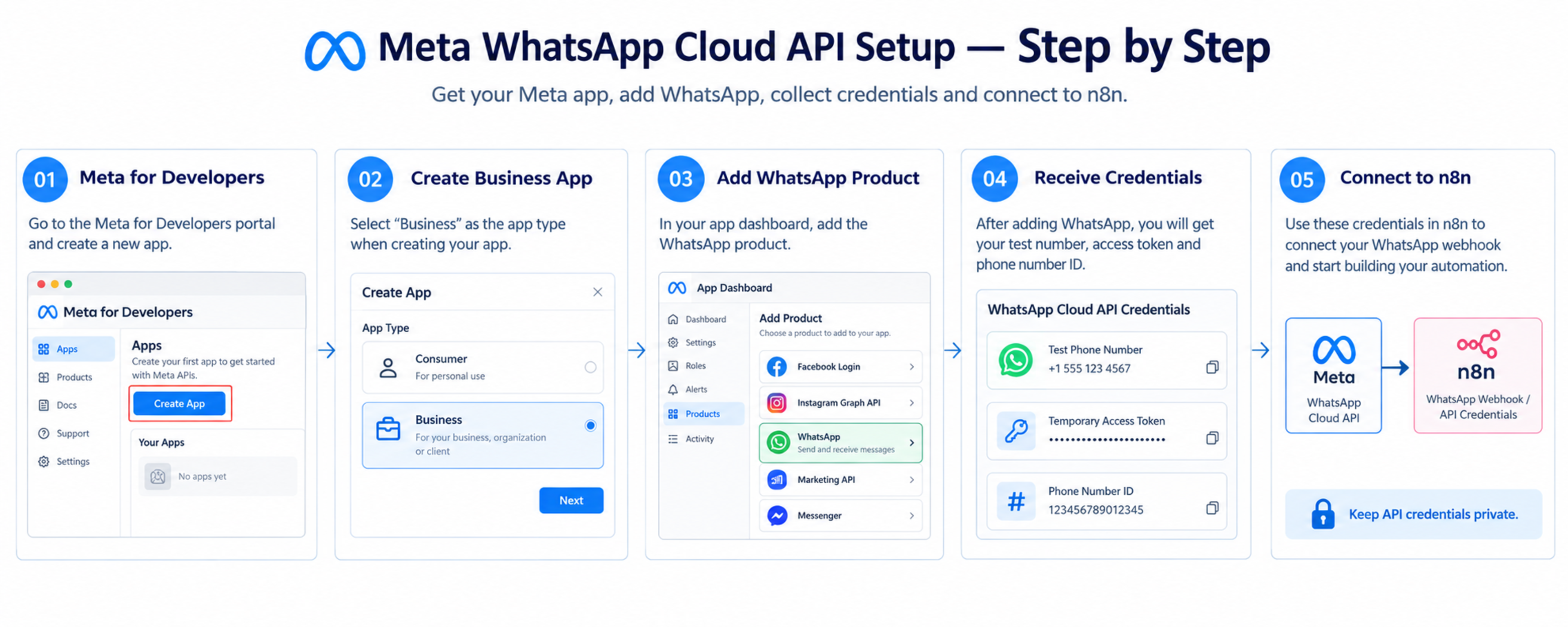
Step 1: Setting up the Meta WhatsApp Cloud API
Before you can build anything, you need to get access to WhatsApp.
Go to the Meta for Developers portal and log in with your Facebook account.
Click Create App and select Other -> Business.
Once your app is created, scroll down and add the WhatsApp product.
Meta will immediately give you a Test Phone Number, a Temporary Access Token, and a Phone Number ID.
Keep this browser tab open! You will need these credentials to plug into n8n.
Step 2: Getting Started with n8n (The Automation Engine)
Now we need the platform where we will build the actual agent. n8n is the best tool for building AI agents for WhatsApp sales automation because it has built-in AI nodes and handles data securely.
How to get n8n:
Option A (Easiest): Sign up for n8n Cloud. They host it for you, and you can start building immediately.
Option B (Self-Hosted/Free): If you are tech-savvy, you can host n8n on a VPS (like AWS, Hostinger, or DigitalOcean) using Docker. This is completely free and gives you full control over your data.
Once you are logged into your n8n workspace, you will see a blank canvas. This is where the magic happens.
Step 3: Building the WhatsApp AI Workflow (Node by Node)
Let's build the core loop: Receiving a message, letting the AI think, and sending a reply.
1. The Trigger Node (Webhook)
On your n8n canvas, add a Webhook Node.
Change the HTTP Method to POST.
n8n will generate a unique "Test URL". Copy this URL, go back to your Meta Developer dashboard, and paste it into the "Webhook Configuration" section.
Why? Now, every time someone messages your WhatsApp number, Meta will instantly send that message to your n8n Webhook.
2. The AI Agent Node
Next, drag a line from your Webhook and add an Advanced AI Agent Node.
Connect an OpenAI Chat Model Node to the AI Agent. (You will need to paste in your OpenAI API key here).
The Prompt: Inside the AI Agent, write simple instructions. For example: "You are Alex, a sales advisor for Global IT Service. Be polite, keep answers under 50 words, and always ask one qualifying question at the end to move the sale forward."
3. The Reply Node (WhatsApp Outbound)
Finally, drag a line from the AI Agent and add an HTTP Request Node.
Set it to POST and use the Meta Graph API URL:
[https://graph.facebook.com/v20.0/](https://graph.facebook.com/v20.0/){YOUR_PHONE_ID}/messages.Add your Meta Access Token in the headers.
Set the body to send the
{{ $json.output }}(the AI's response) back to the sender's phone number.
Just like that, you have built the foundation of an AI chatbot without writing complex server code!
Step 4: Adding "Memory" and Product Knowledge (RAG)
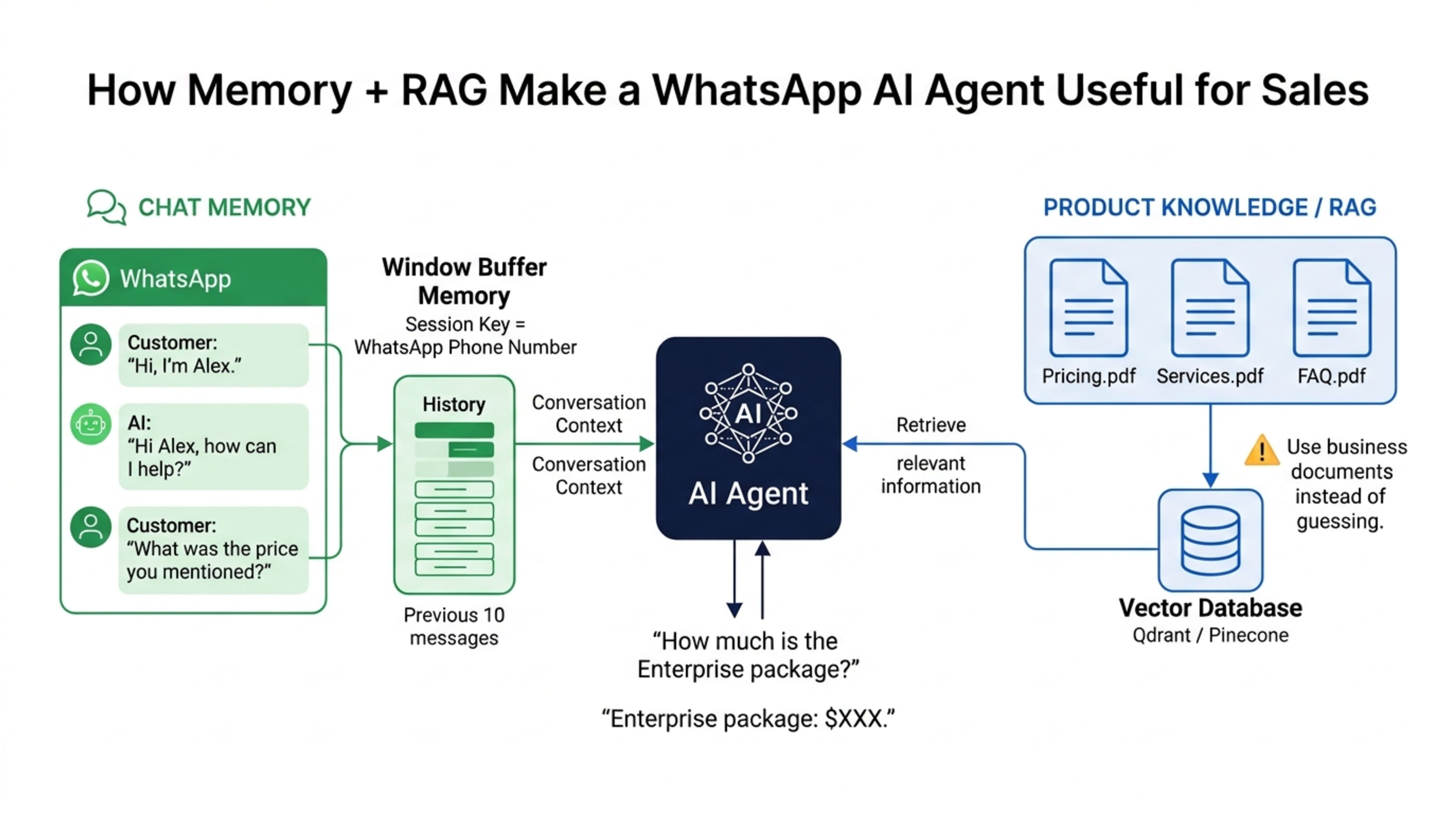
If an AI chatbot forgets a customer's name two minutes after they say it, it is useless for sales. Furthermore, if a customer asks for your pricing, the AI shouldn't guess or make up a number (hallucinate). It needs to read your actual pricing documents.
When building AI agents for WhatsApp sales automation, we solve this by giving the AI two things: Chat Memory and Product Knowledge (RAG).
1. Adding Chat Memory
In n8n, you can easily make the AI remember the conversation.
Go to your AI Agent node on the canvas.
Connect a Window Buffer Memory Node to it.
Set the "Session Key" to the sender's WhatsApp phone number.
Result: Now, every time that specific phone number sends a message, the AI will pull up the last 10 messages from their chat history. The conversation will feel natural and continuous.
2. Giving the AI Your Product Catalog (RAG)
RAG stands for Retrieval-Augmented Generation. It is just a fancy term for giving your AI the ability to read a document before answering a question.
In n8n, connect a Vector Store Tool to your AI Agent.
Connect this tool to a database like Qdrant or Pinecone (both have generous free tiers).
Upload your business pricing PDFs, service rules, and FAQs into this database.
Give the tool a simple description: "Use this tool to look up our services and pricing before you answer."
Result: If a customer asks, "How much is the enterprise package?", the AI will autonomously open your pricing PDF, find the exact price, and reply accurately on WhatsApp.
Step 5: Connecting Your CRM (HubSpot)
A sales agent that just talks but doesn't save leads is just a toy. The true power of building AI agents for WhatsApp sales automation comes from connecting the bot directly to your CRM, so your human sales team can follow up later.
In n8n, you can give your AI "Tools" that let it take actions in the real world.
How to sync leads automatically:
On your canvas, add a HubSpot Node. (n8n has this built-in, so you just need to log in to your HubSpot account to connect it).
Configure the HubSpot node to "Create a Contact."
Connect this node to the AI Agent as a Tool.
Name the tool something simple, like
save_lead_to_crm.Tell the AI how to use it: "When the prospect provides their name and email address, run this tool to save them in our system."
Now, the AI acts like a real Sales Development Representative (SDR). If the bot says, "I'd love to send you a demo link, what is the best email for you?" and the customer replies with their email, the AI will automatically push that data into HubSpot without you lifting a finger.
Step 6: Testing, Deploying, and Going Live
Your visual automation is complete! Now it is time to flip the switch and let customers interact with it.
1. Test with the Meta Developer Number
Meta gives you a free test phone number inside the Developer Dashboard. Send a WhatsApp message from your personal phone to this test number. Watch the n8n canvas—you will see the nodes light up as the message comes in, the AI thinks, and the reply gets sent back to your phone!
2. Upgrade to a Permanent Access Token
The access token Meta gives you at the start expires every 24 hours. To go live permanently:
Go to your Meta Business Manager.
Navigate to System Users and create an Admin User.
Generate a Permanent Access Token. Replace the temporary token in your n8n HTTP Request node with this new permanent one.
3. Add Your Real Business Number
In the Meta Developer dashboard, you can now link a real phone number to your WhatsApp API. Once verified, simply flip the toggle on your n8n workflow from "Inactive" to "Active."
🚨 Important Compliance Rule: The 24-Hour Window When a customer sends you a WhatsApp message, Meta opens a "24-hour customer service window." Your AI can chat freely with them during this time. However, once 24 hours pass from their last message, you cannot send them regular texts anymore. Keep this rule in mind to avoid having your WhatsApp number restricted by Meta.
7. Resources, GitHub Links, and Video Tutorials
If you want to speed up the process of building AI agents for WhatsApp sales automation, you don't have to start from an empty canvas. Use these community resources to import pre-built templates directly into your n8n workspace:
Official n8n Template Library: You can browse the n8n Workflow Templates and search for "WhatsApp AI." With one click, you can copy an entire workflow and paste it onto your canvas.
Awesome n8n Templates (GitHub): The open-source community maintains a repository of incredible setups. Check out enescingoz/awesome-n8n-templates for ready-to-use WhatsApp integrations.
YouTube Guide - WhatsApp API Setup: If you get stuck in the Meta Developer portal, search YouTube for "Meta WhatsApp Cloud API Setup Guide" for visual, click-by-click walkthroughs on getting your tokens.
YouTube Guide - n8n AI Agents: Search for "Building AI Agents in n8n" to watch exactly how to connect the OpenAI and Memory nodes together.
Conclusion
The era of frustrating, rule-based chatbots is officially over. Customers expect instant, intelligent, and natural conversations when they reach out to your business. Building AI agents for WhatsApp sales automation is the ultimate upgrade to your sales funnel, allowing you to qualify leads, answer complex product questions, and sync data directly to your CRM—24 hours a day, 7 days a week.
Thanks to visual automation platforms like n8n, you no longer need a team of software engineers to deploy this technology. By combining the Meta WhatsApp Cloud API, OpenAI’s intelligence, vector databases for product knowledge, and HubSpot for lead tracking, you can create a seamless, automated account executive in just a few hours.
Start small by automating your FAQs, add CRM syncing as you get comfortable, and watch your WhatsApp channel transform from a basic support inbox into an autonomous revenue engine.
AI Solutions, Chatbots & Workflow Automation
Empower your business with custom AI agents, automated customer support, and smart pipelines.
Explore this service
Feedback & Discussion
Have questions or insights? Share your thoughts below.